Snow Rider 3D on a Chromebook, Laptop or Phone: Controls and Smooth Play
Published · 3 min read
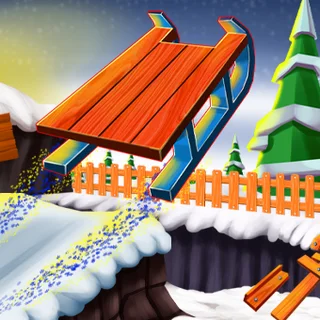
Snow Rider 3D is a proper 3D game, not a flat 2D sprite game, so it asks more of the computer than most browser games. On a new laptop you will never notice. On a five-year-old school Chromebook or a budget phone, a few settings decide whether the sled glides or stutters. Here is how the controls work on each kind of device and how to make the game run smoothly.
Controls on a keyboard
Left and Right arrows steer, the Up arrow jumps. That is all. The one thing that trips people up is focus: if you press the arrows and nothing happens, the page has the keyboard instead of the game. Click once inside the game and the keys go to the sled. The arrow keys also scroll the page on some browsers when the game does not have focus, which is another sign that you need to click into it first.
Controls on a touchscreen
On a phone or tablet there are no buttons on screen. The screen itself is the controller: tap the left half to steer left and the right half to steer right. Short taps work better than long presses, for the same reason they do on a keyboard — a long press swings the sled wide. Turn the phone sideways; the mountain is much easier to read in landscape.
Use the big view
The player has a Wide button and a Fullscreen button under the game. Bigger is better in Snow Rider: you see obstacles earlier, and seeing them earlier is most of the game. Fullscreen on a laptop also stops accidental clicks on the rest of the page from stealing the keyboard.
If it loads slowly
The game downloads about 13 MB the first time — the 3D mountain, the sleds and the sounds. After that, the browser keeps a copy, so the second visit starts much faster. On a slow school network, give the first load a moment rather than reloading halfway through, which only starts the download again.
If it stutters
- Close other tabs. Video tabs and other games compete for the same graphics chip. Closing them is the single biggest fix on a Chromebook.
- Check hardware acceleration. Snow Rider 3D uses WebGL. If the browser has hardware acceleration turned off, the game falls back to drawing on the processor and runs at a fraction of its speed. In Chrome it is under Settings → System.
- Plug in the charger. Many laptops slow the processor down on battery saver.
- Try normal size instead of fullscreen. On a very weak device a smaller game window means fewer pixels to draw each frame.
If the screen stays black
A black box that never shows the loading bar usually means WebGL is blocked or unavailable. Update the browser, turn hardware acceleration on, and reload. If it still stays black, tell us the browser and device on the contact page and we will look at it.
Your best score and gifts
Snow Rider 3D stores your best score and your gifts in the browser, on this device. They stay after you close the tab. They do not follow you to another computer, and they disappear if you clear the browser's site data or play in a private or guest window — so on a shared school computer, the best score you see may not be yours.
Everything set? Start a run, or read the riding tips first.
More from the blog
- Snow Rider 3D Tips: Read the Mountain, Tap the Arrows, Jump Early
Why most Snow Rider 3D runs end in the first minute, and a simple routine — ride in waves, look two obstacles ahead, tap instead of hold — that makes them last.